FiboFilters introduces a new Color filter type, which allows you to use color swatches for filter values on your website. This feature provides a visual, interactive way for customers to filter products by color, improving the user experience and making it easier to find the desired item.
Table of Contents
- Available options
- Enabling the Color filter type
- Overriding default colors
- Overriding colors with images
- Multiple selection for colors
- Grouping colors
Available options
| Option name | Description |
| Data source | Where should the features for Color lists come from? Read more about data sources. |
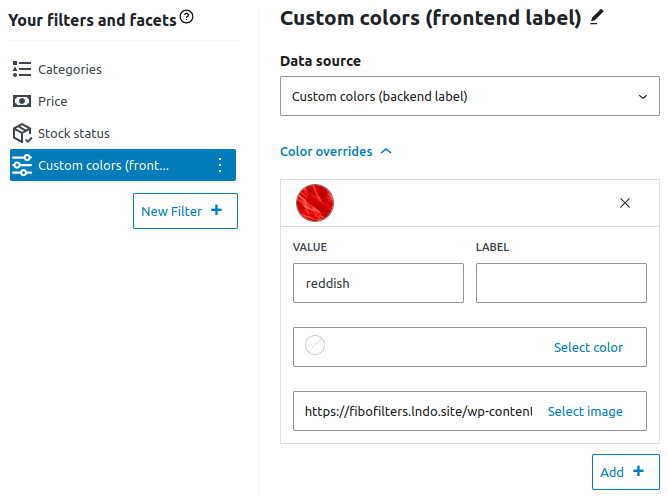
| Color overrides | Customize colors displayed on front-end or replace them with images. |
| When to show | Always – a filter will always be displayed. Auto – a filter will be visible conditionally. Read more about content-aware filters. |
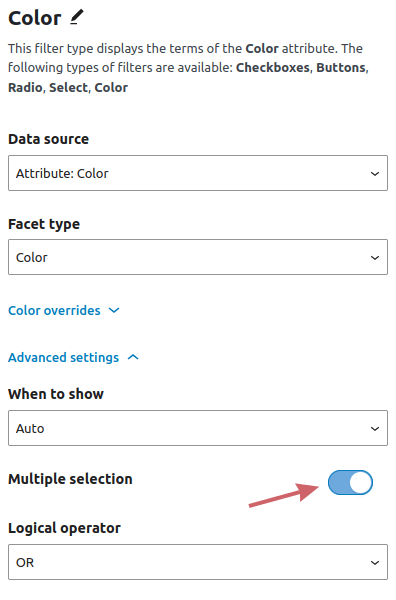
| Multiple selection | Specify whether the user can select multiple colors. |
| Logical operator | When “Multiple selection” is on, specify whether it should follow the OR or AND logic: OR – show products that match any selected color AND – show products that match all selected colors |
| Values order | In what order should Radio list features be presented? Alphabetically – sorts choices alphabetically. By counters – sorts choices by the total number of products assigned with that feature. By term order – determines the sort order of the terms using custom ordering. Custom ordering is supported by WooCommerce, but there are plugins that do this job as well. Currently, we don’t support these plugins. |
| Display filter name in applied filters | If the user selects a color, it will also be displayed above the products in a special section called “Applied filters”. With this option enabled, the “Filter name” and “Selected feature” will be displayed as shown in the screenshot below. Inversely, when the option is disabled, only the “Selected feature” will be shown. 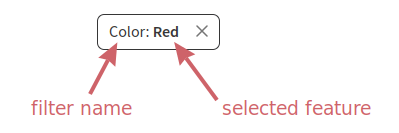 |
Enabling the Color filter type
By default, the Color filter type is disabled. To enable it, add the following code to your website:
add_filter( 'fibofilters/features/type_color', '__return_true' );
ⓘLearn how to add this snippet to your WordPress.
Once the code is added, you will be able to choose the Color filter type for product attributes and custom fields:
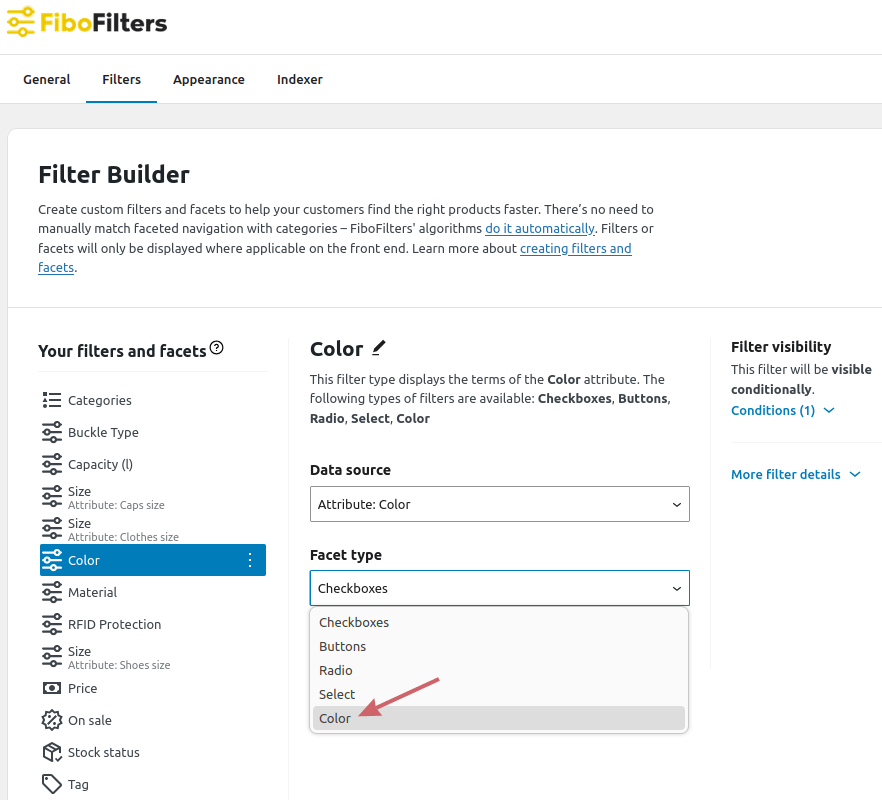
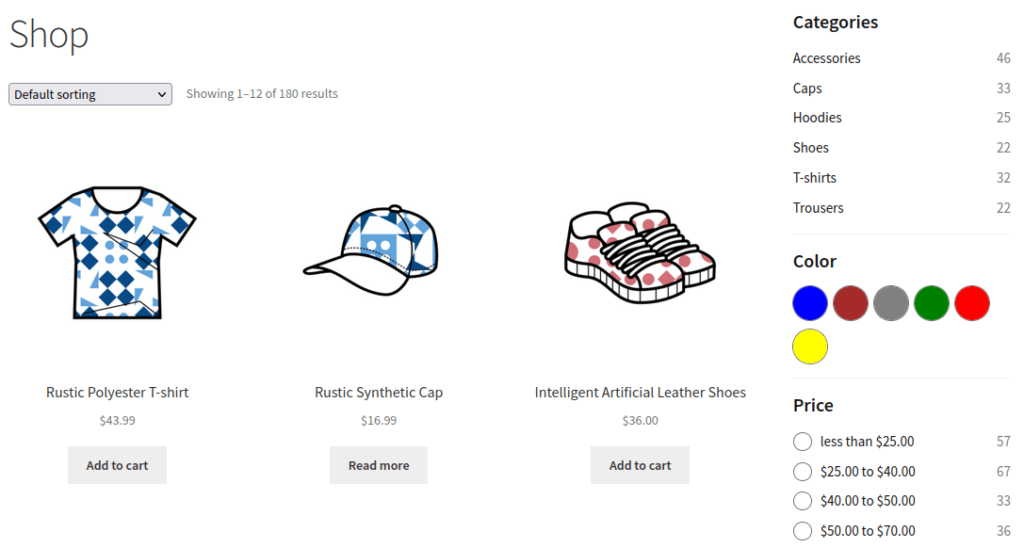
Upon doing so, color swatches will be displayed on the front end as long as the filter values are valid CSS color names. For a list of valid CSS color names, refer to CSS Colors.
In the example below, the filter values are “blue”, “brown”, “gray”, “green”, “red” and “yellow”. FiboFilters will read the values and display corresponding circles with the colors as the background:
Overriding default colors
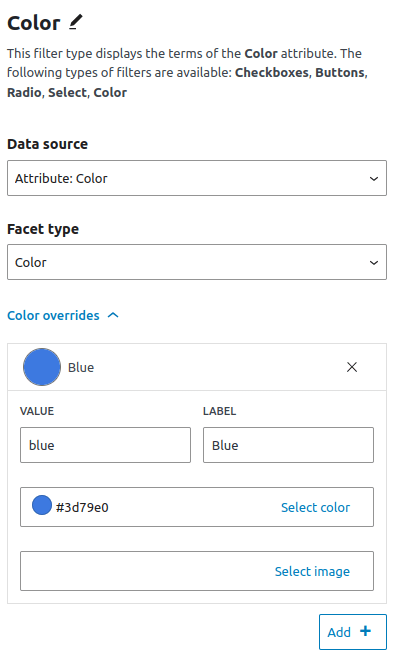
If your filter values are not valid CSS color names or if you wish to customize the colors, you can override them in the filter settings. Expand the “Color overrides” section and click “Add +”. Provide the specific color value you wish to override and select the new color. The example below will override the color for the “blue” filter value:
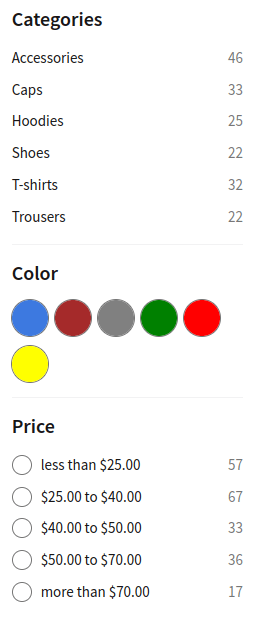
Once you’ve saved the settings, the “blue” color will display on the front end according to your preferences:
Overriding colors with images
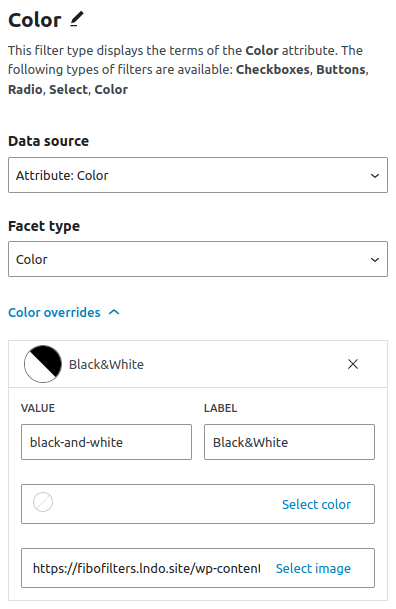
FiboFilters also allows you to override color swatches with images. This is particularly useful when dealing with items that have complex or mixed colors.
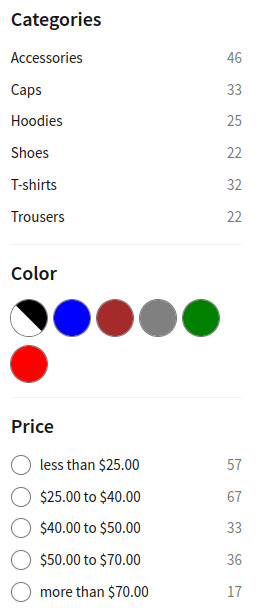
For example, you can use an image to represent a black-and-white color filter instead of a solid color swatch:
This is what it looks like on the front end:
Multiple selection for colors
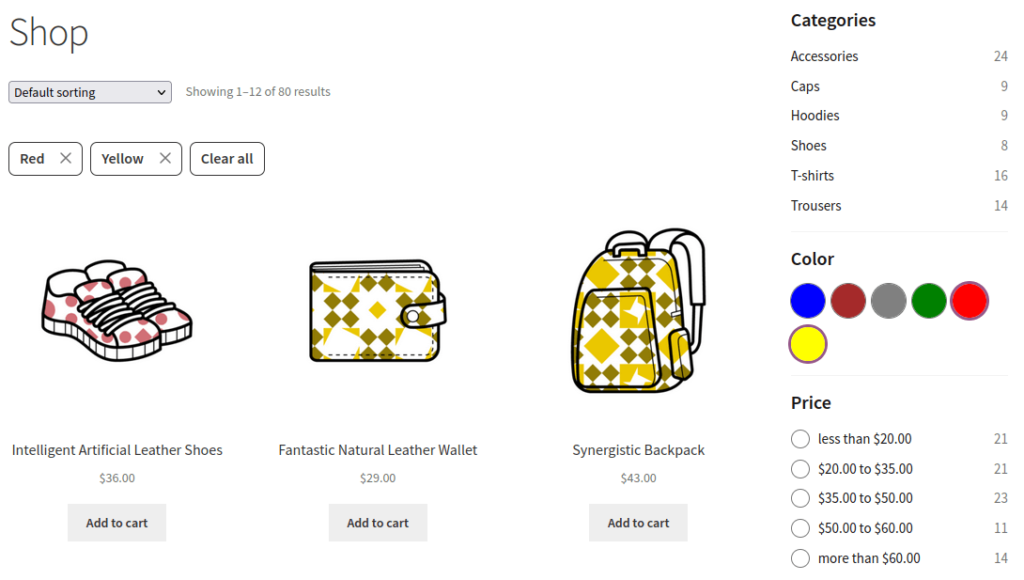
FiboFilters also supports multiple selections in the Color filter type. This allows customers to filter by multiple colors at once.
Go to the “Advanced settings” section in your filter settings and enable the “Multiple selection” option:
You will now be able to select multiple colors at once:
Grouping colors
When a shop offers products in many similar shades (for example, multiple tones of yellow or blue), the color filter can become overwhelming for customers. To simplify color selection, you can group similar colors using computed filters.
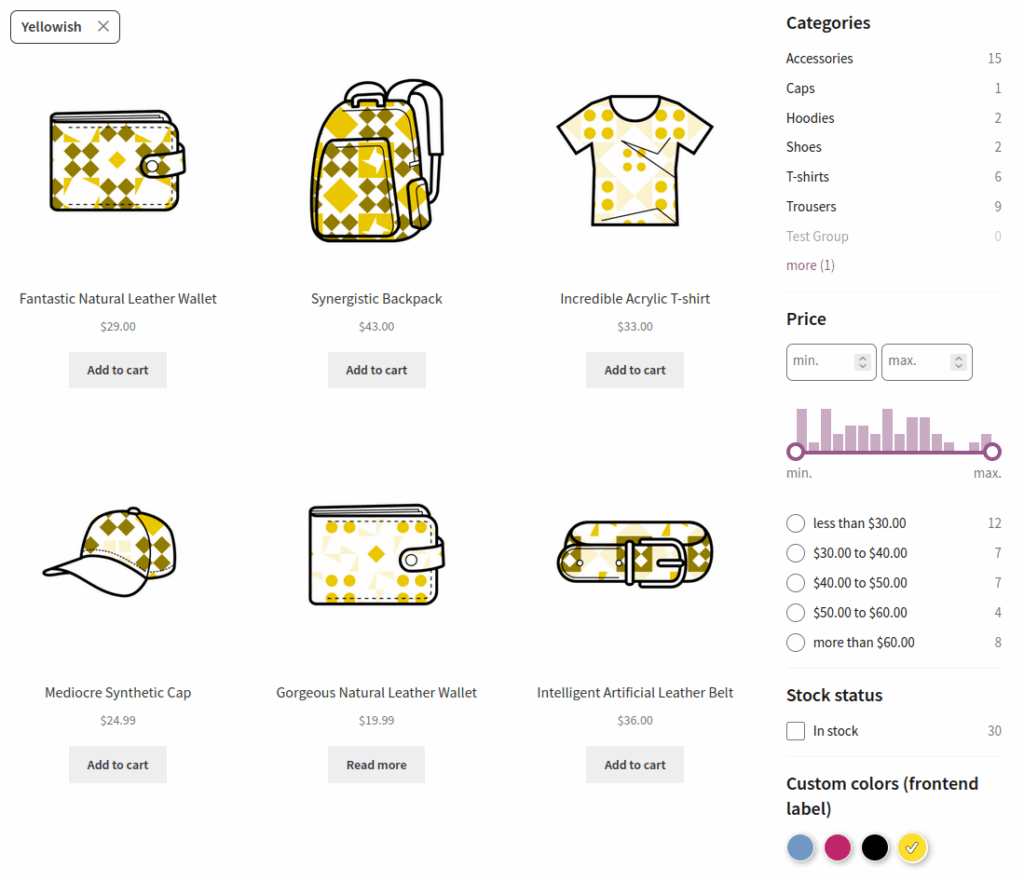
In the following example, similar colors are grouped into new, broader categories:
- Yellow, Gold, and Flax are grouped together into Yellowish
- Red, Crimson, and Scarlet are grouped together into Reddish
- Blue, Baby blue, and Navy blue are grouped together into Blueish
- All other colors are grouped together into Undefined
Colors are retrieved from the pa_color attribute. For each computed color, define both the color (as a hex value) and a new label, e.g. [ [ '#FEDF2C', 'Yellowish' ] ].
add_filter( 'fibofilters/filters/custom_sources/computed', function ( $sources ) {
    $sources[] = [
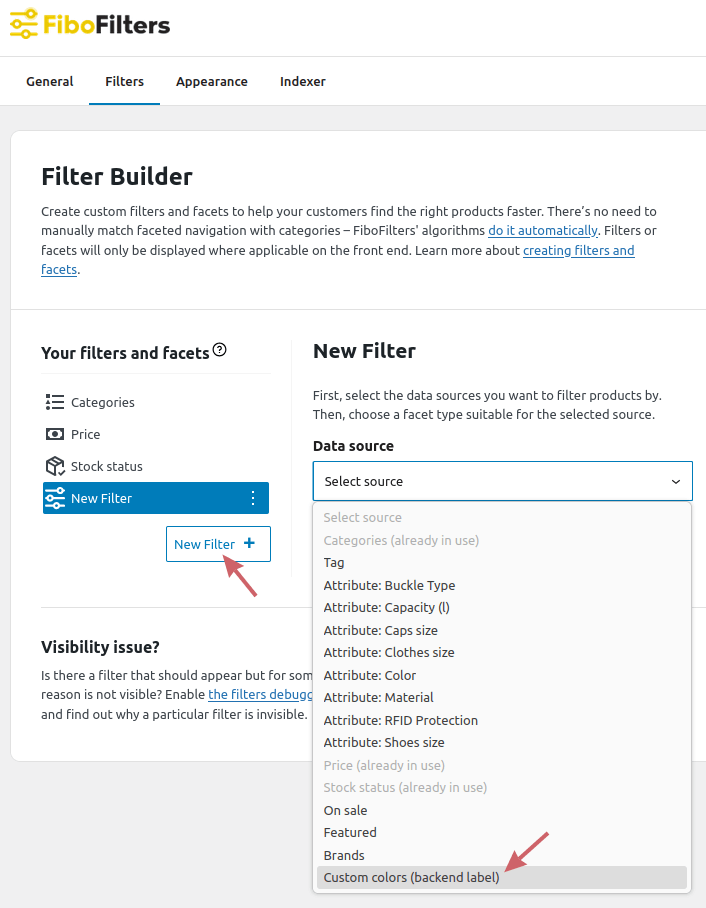
        'label'       => 'Custom colors (backend label)',
        'label_front' => 'Custom colors (frontend label)',
        'computed'    => 'my-custom-colors',
        'type'        => 'color',
        'callback'    => function ( $product_id, $parent_id ) {
			$product = wc_get_product( $product_id );
			$color = $product->get_attribute( 'pa_color' );

			switch ( $color ) {
				case 'Yellow':
				case 'Gold':
				case 'Flax':
					return [ [ '#FEDF2C', 'Yellowish' ] ];
				case 'Red':
				case 'Crimson':
				case 'Scarlet':
					return [ [ '#BF256A', 'Reddish' ] ];
				case 'Blue':
				case 'Baby blue':
				case 'Navy blue':
					return [ [ '#7596C2', 'Blueish' ] ];
				default:
					return [ [ '#000000', 'Undefined' ] ];
			}
        },
    ];
    return $sources;
} );
ⓘLearn how to add this snippet to your WordPress.
Once the code is added to your website, navigate to WooCommerce > FiboFilters > Filters and add a new filter using the newly-created source:
After adding the filter, save the changes and wait for the index to rebuild.
Customers will now see a simplified list of grouped colors, making product filtering much easier:
You can still use all color filter features, such as overriding colors or images. When overriding, make sure to use the new computed color label in lowercase (e.g., reddish, blueish, etc.):