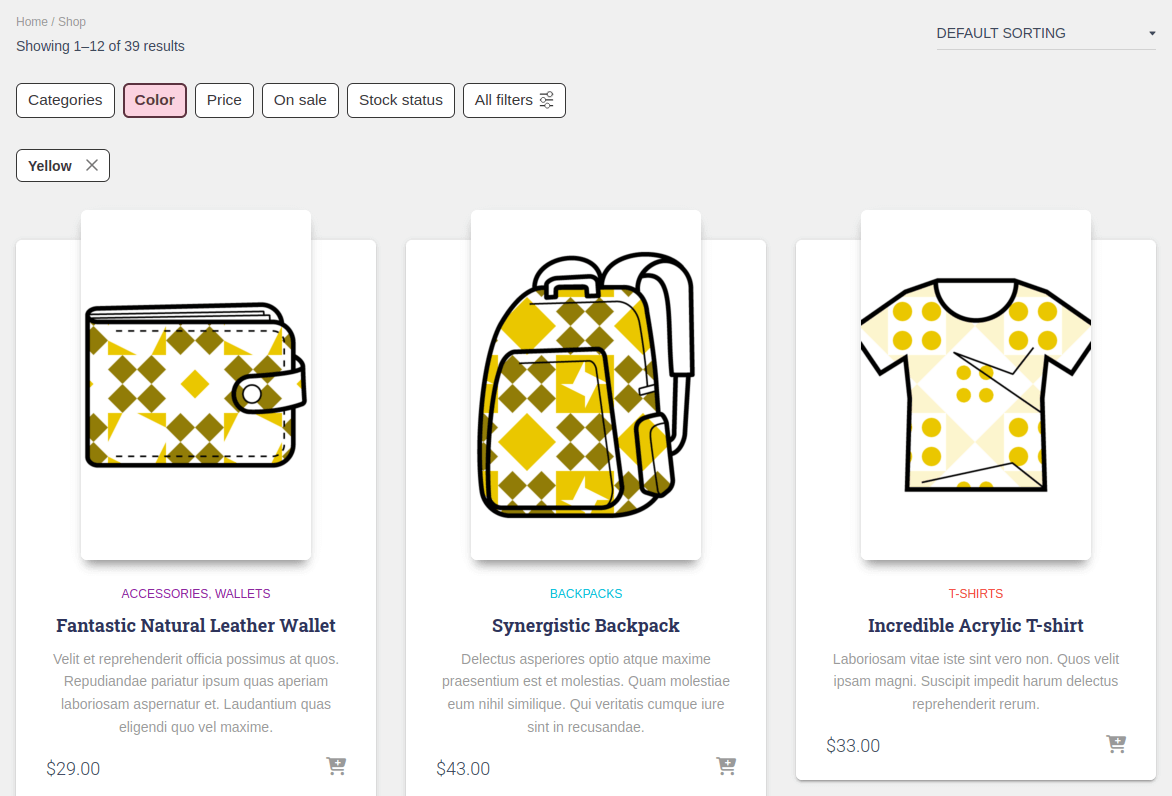
FiboFilters offers seamless integration with the Hestia theme owned by ThemeIsle.
Table of Contents
If you have an active parent or child theme of Hestia, you will be able to activate the integration in the FiboFilters settings under the “General” tab. You should see the following screen:
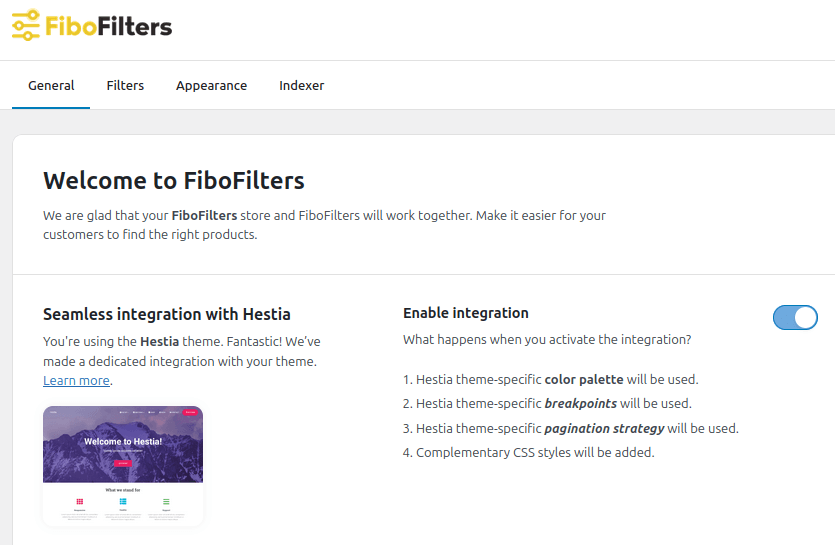
What does the integration include?
Breakpoints
The Hestia theme sets the mobile breakpoint to 991 px. When this breakpoint is reached, the filters are moved from the sidebar above the products.
Colors
In Hestia theme, you can specify an accent color that will be used across your website. This can be done in Appearance > Customize > Appearance Settings > Colors:
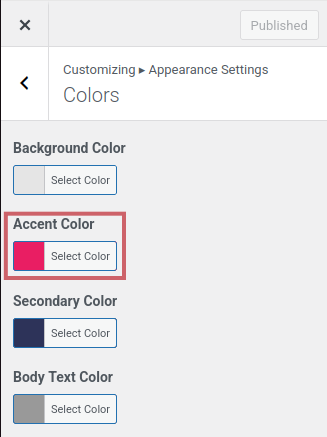
FiboFilters will use this color for the filters.
Pagination strategy
FiboFilters is compatible with Hestia pagination strategy set in Appearance > Customize > Shop Settings > Shop:
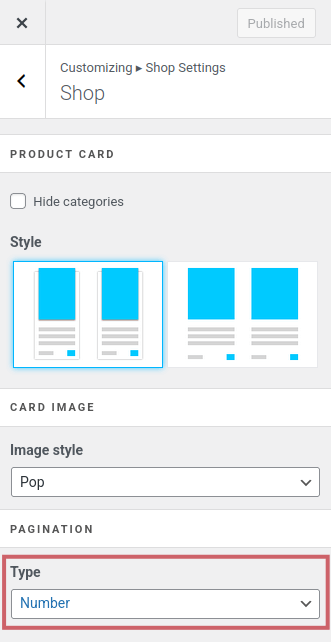
Ways to embed filters in the Hestia theme
The most popular ways to embed filter UI elements in the Hestia theme are adding them to the sidebar or displaying them above the product listing as horizontal filters.
Sidebar
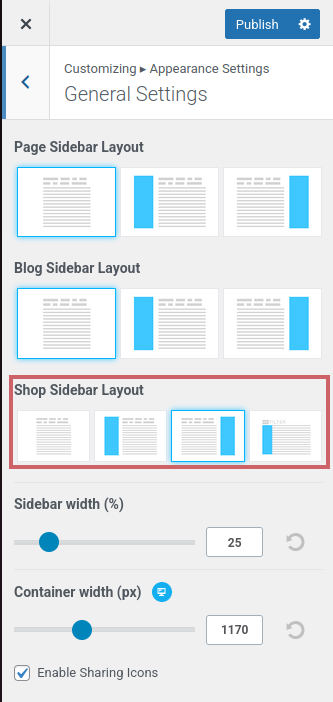
First, you need to enable the sidebar in Hestia options. This can be done in Appearance > Customize > Appearance Settings > General Settings:
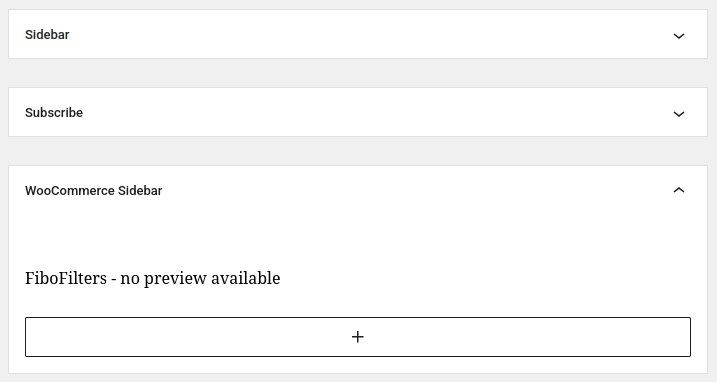
Once the sidebar is enabled, navigate to Appearance > Widgets and add the FiboFilters widget to the “WooCommerce Sidebar” widget area:
Finally, go to WooCommerce > FiboFilters > General and select “Sidebar” in the “Filter location section”.
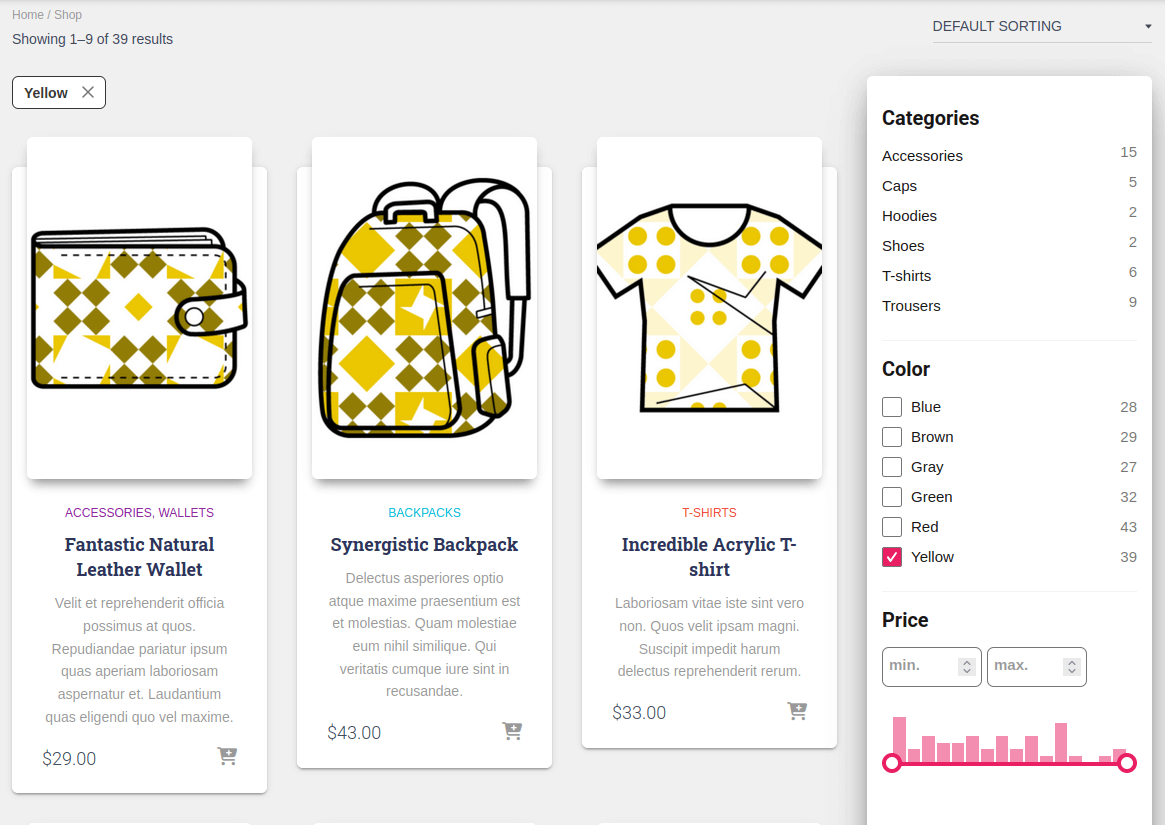
As a result, you should see FiboFilters in the sidebar:
Above the products
Go to WooCommerce > FiboFilters > General and select “Above the products” in the “Filter location” section. FiboFilters will then place horizontal filters above the products: