FiboFilters comes as a ZIP file that you upload to WordPress. After you enter your license key, a short setup wizard adds your first filters.
1. Download the ZIP file
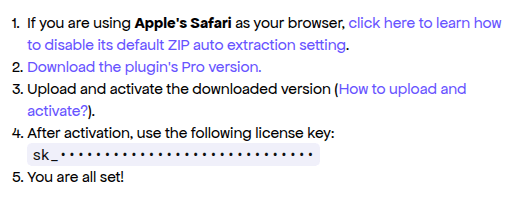
Open the purchase email from FiboFilters Team on the computer you use for your WordPress admin. Click “Download the plugin’s Pro version.” and keep the email open, because your license key is in it too.
You need the file ending in .zip, not an unpacked folder. If Safari unpacked it, the first step of the email shows how to turn that off. Then download the file again.
2. Upload it to WordPress
In your WordPress admin, go to Plugins > Add Plugin and click “Upload Plugin”. Choose the ZIP file, click “Install Now” and then “Activate Plugin”.

3. Enter your license key
The license screen opens by itself. Paste the key from your email into the “License key” field and click “Activate License”. When the key is accepted, the “Welcome to FiboFilters” wizard starts.
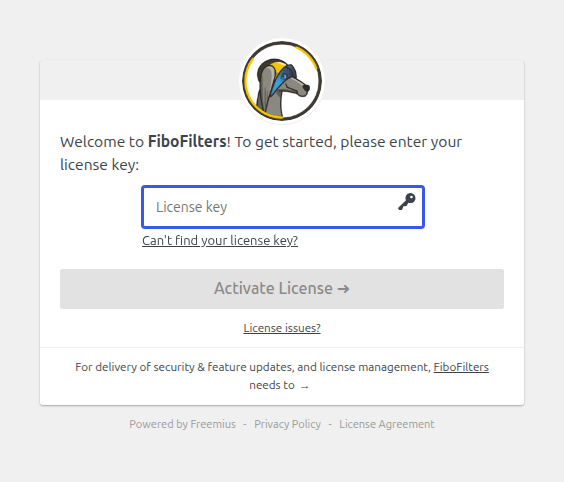
If the license screen doesn’t open, or you close it, go to WooCommerce > FiboFilters to enter your key.
4. Choose your filters
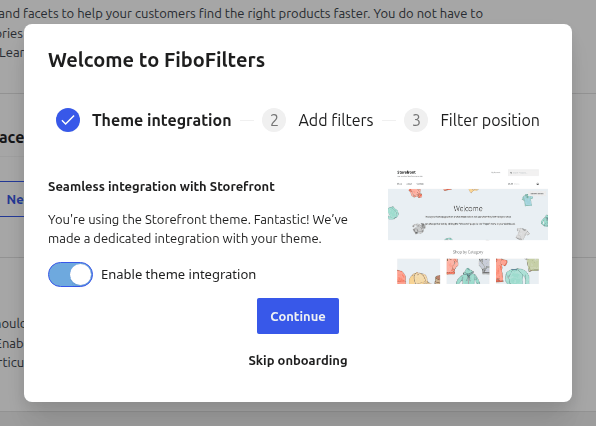
If the wizard begins with a “Theme integration” step, keep the integration enabled and click “Continue”.
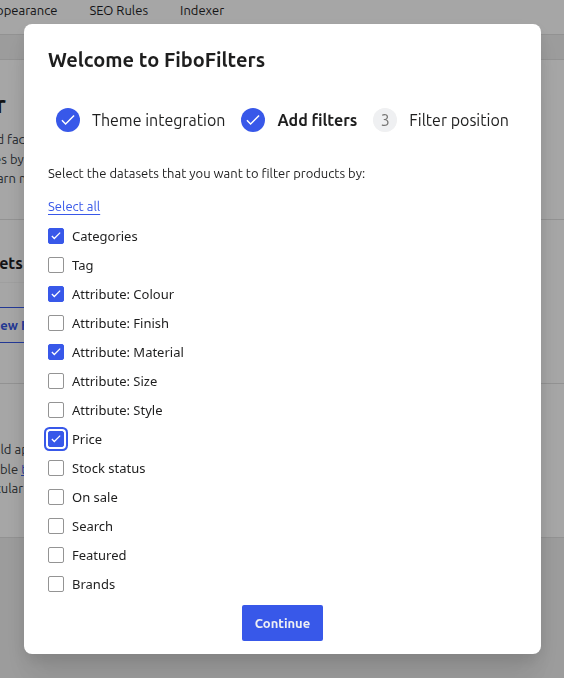
On the “Add filters” screen, tick what your shoppers should filter by. You choose from what your store has, such as categories or price. Then click “Continue”.
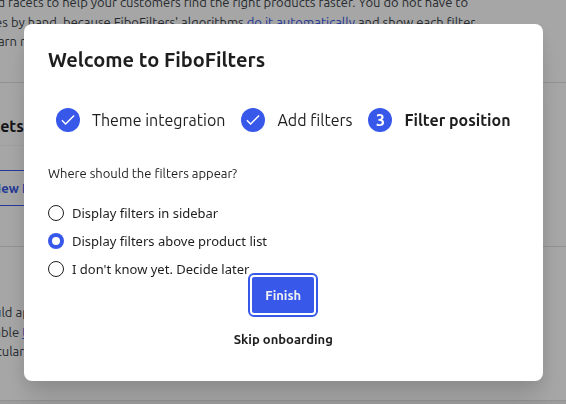
5. Choose where the filters appear
Leave “Display filters above product list” selected and click “Finish”. For the sidebar or another setup, Add product filters to your WooCommerce shop has the steps.
6. Try the filters in your shop
Open your shop page and pick a category or a price range. If the product list changes to match, you’re done.
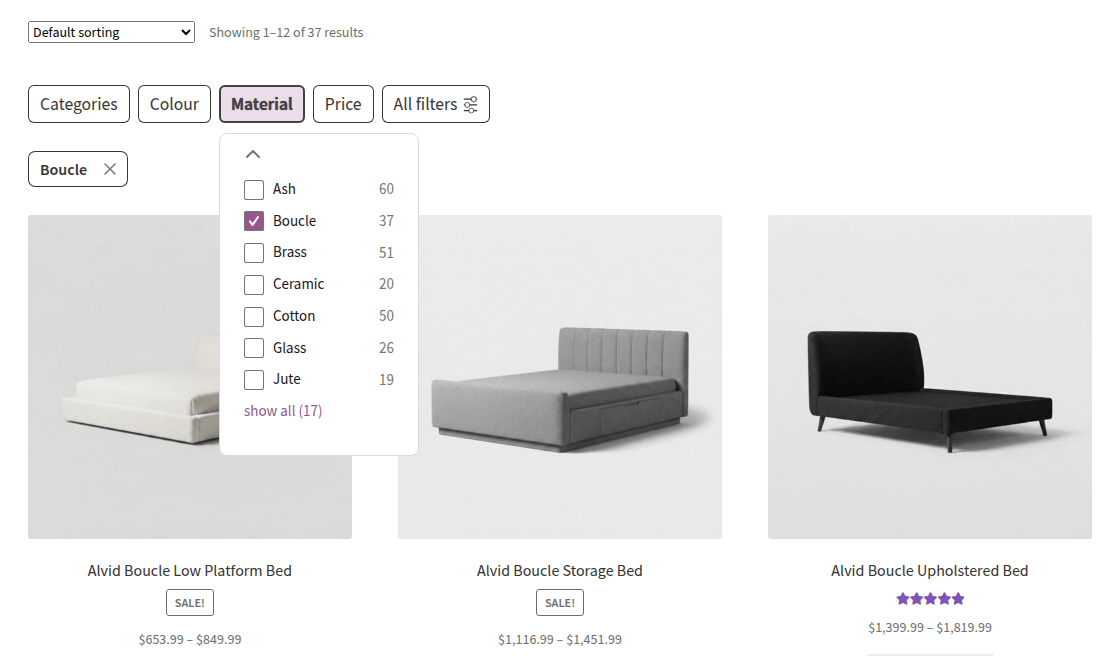
FiboFilters shows only the filters that match the products on the page, so you may not see every filter everywhere.
Questions
The wizard didn’t start, or I closed it
Set up your filters by hand. How to create filters and facets shows how, and Add product filters to your WooCommerce shop puts them on your shop page.
I can’t find my license key
Your license key is always in your account at fibofilters.com/account/, on the “Licenses” tab. “My Account” Area shows how to log in.
You can also click “Can’t find your license key?” on the license screen, enter the email address you used for the purchase and click “Send License Key”.
I see “Invalid license key.”
Copy the whole key from your purchase email again and paste it into the field.
I see “This license is already in use…”
Your key is active on another site. On that site, go to WooCommerce > FiboFilters > My Account, click “Deactivate License” and confirm. Then enter the key on the new site.
Deactivating the plugin on the Plugins page is not enough. The license stays tied to the old site until you click “Deactivate License”. For staging and development copies, License use on staging, dev and Multisite explains the rules.
Still stuck? Contact us with the step you reached and any message you see.
Tested with WooCommerce 11.3.0, FiboFilters 1.13.1 and Storefront 4.6.2 on November 16, 2026.