SEO Rules let you turn selected filtered product segments, such as red T-shirts, Fender guitars, or other valuable filter combinations, into SEO-friendly long-tail landing pages.
By default, filtered pages are kept out of Google on purpose. This is the safest SEO default, because filter combinations can create many similar URLs that should not be indexed. With SEO Rules, you can choose which filtered URLs should become indexable, get their own title, description, and heading, and be added to your sitemap.
You don’t need to build new pages. You’re simply unlocking the ones your shop already has.
The problem with WooCommerce filter URLs
A WooCommerce store with ten product attributes can generate more than 50,000 possible filter URLs. Take a clothing store with color (10 options), size (8), material (5), brand (20) and fit (4): the math gets out of hand fast. Google indexes roughly 200 of those URLs in a typical store. The rest fall into three failure modes that cost you rankings and crawl budget:
- Thin and duplicate content.
/shop/?color=redand/shop/?color=red&size=lshow almost identical product grids with identical headings and meta descriptions. Google has no reason to prefer one over the other, or to index either. - Crawl budget waste. Google Search Console shows hundreds of URLs under “Discovered – currently not indexed.” Google found them, spent crawl budget on them, and walked away. Those crawl slots could have been spent on your actual product pages.
- Generic titles. Your SEO plugin generates the same template for every filtered URL regardless of what the shopper is looking at. There is no signal to Google or to the user that
?color=redleads to a page about red items specifically.
The flip side: some of those ignored URLs are focused, high-intent pages you’d otherwise build by hand, so the waste is also a missed opportunity.
The underlying cause of all three is the same: no tool was deciding which filter combinations are worth indexing and which are not. Without that decision, Google has to guess.
SEO Rules gives you that decision. You pick the combinations worth indexing, write targeted titles for them, and FiboFilters handles canonical and noindex for everything else automatically.
For background on why faceted navigation is a challenge, see Google Search Central – Faceted navigation best (and 5 of the worst) practices.
What SEO Rules does
SEO Rules lets you control what Google sees when a shopper filters your WooCommerce shop. For each filter combination worth ranking, for example “Red sneakers”, you set a custom title, meta description, H1 and body copy, and the page becomes indexable and enters your sitemap. In effect, you promote an existing filtered page into a long-tail page of its own: the kind of page marketers usually build by hand, except this one already exists in your shop. FiboFilters injects the content server-side and updates it client-side without a page reload when filters change.
You create a rule by combining a base view (where the rule lives – shop page, a category) with one or more filter conditions. When a shopper’s URL matches that combination exactly, FiboFilters serves your custom title, meta description, H1 and descriptions, and marks the page as indexable with a self-canonical. Every other filtered URL gets noindex, follow.
It works with Yoast SEO, All in One SEO, Rank Math and SEOPress out of the box, or in native mode when no SEO plugin is installed.
Anatomy of an SEO Rule
Every rule has five parts. Understanding each one makes matching predictable.
Base view
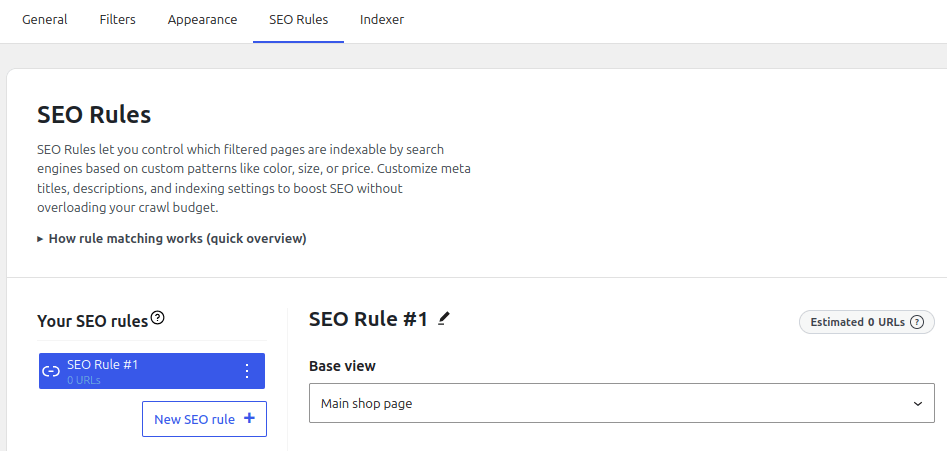
The base view is where the rule lives. It scopes the rule to a specific part of your shop:
- Main shop page – the main shop page (
/shop/). - Any product category – matches any product category page.
- Specific category – one chosen category (e.g.,
/category/sneakers/).
When two rules both match a request, the more specific base view wins. A rule set to “Specific category: Sneakers” outranks a rule set to “Any category” on the sneakers page.
IF – conditions
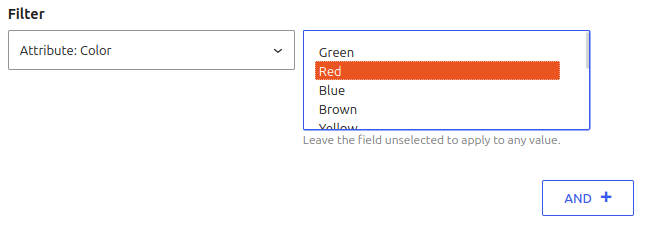
Conditions define which filter combination triggers the rule. The filter set in the URL must match the rule’s conditions exactly – no more, no fewer filters.
| Condition | Fires on | Does not fire on |
| Color = Red | ?color=red | ?color=red&brand=nike |
| Color (any value) | ?color=red, ?color=blue | ?color=red&size=l |
| Color = Red AND Size = L | ?color=red&size=l | ?color=red |
The URL ?color=red,blue (multi-select) never matches any rule – FiboFilters requires a single value per filter.
Tip: hold CTRL to select multiple values or to deselect them.
THEN – templates
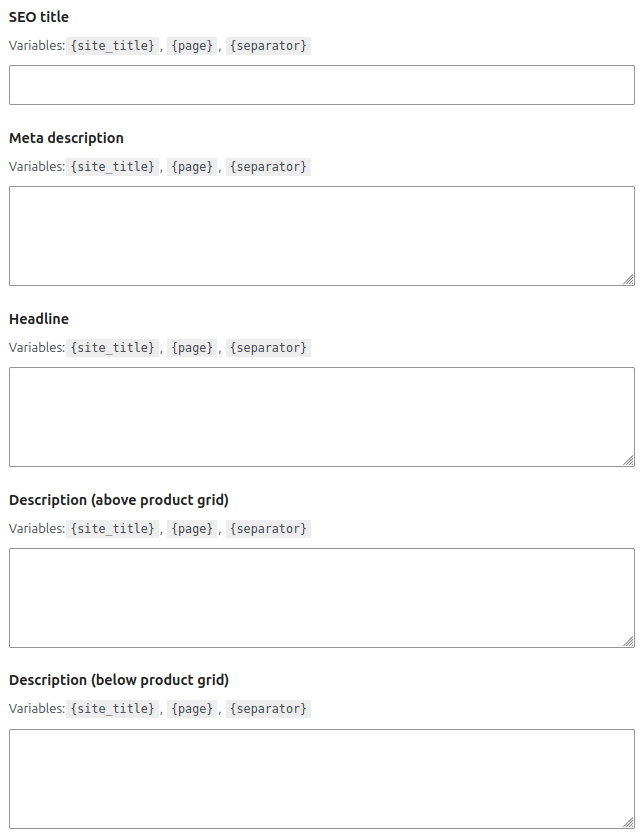
When the rule fires, you control five fields:
- SEO title – the
<title>tag. Plain text only. - Meta description – the
<meta name="description">tag. Plain text only. - Headline – the H1 shown on the page (if your theme provides a headline slot).
- Description (above product grid) – copy rendered above the product list. Supports
<b>and<strong>HTML tags. More tags can be allowed with thefibofilters/seo/allowed_htmlfilter – see Developer hooks below. - Description (below product grid) – copy rendered below the product list. Supports
<b>and<strong>HTML tags. More tags can be allowed with thefibofilters/seo/allowed_htmlfilter – see Developer hooks below.
All five fields accept placeholders (see: Placeholders).
Rule is active toggle

The active toggle controls three things at once:
- Whether the rule participates in matching at all. An inactive rule is invisible to the matching engine – it can never win, even against a weaker competing rule.
- Whether the matched URL is indexable (self-canonical, allowed in Google’s index).
- Whether the URL appears in the SEO Rules sitemap.
If you turn a rule off, the page falls back to noindex, follow as if no rule existed. This makes the toggle useful for staging rules before their time – you can write and save a rule, then activate it when the content is ready.
What happens behind the scenes
On page load (server)
When a shopper loads a filtered URL, FiboFilters evaluates all active rules server-side and selects the best match. Rules are cached in an internal cache layer, so the lookup adds no measurable latency.
The winning rule’s title and meta description, as well as the canonical link and robots meta tags are injected through your SEO plugin’s official filter hooks. FiboFilters detects the first active supported plugin in this order: Yoast SEO, All in One SEO, Rank Math, SEOPress. It registers only one integration and stops. If none of those plugins is installed, native mode handles everything directly.
On filter change (client)
When a shopper changes a filter without a full page reload, the JavaScript layer takes over. On the first filter interaction it fetches the full rule set from a REST endpoint and stores it in the browser’s Cache Storage. Subsequent filter changes read from that cache rather than making new network requests.
The matching algorithm runs entirely in the browser – it is a JavaScript port of the same specificity logic used server-side. On a match, it updates document.title, meta description, the H1 and the above/below grid descriptions in real time.
The canonical and robots meta are not updated client-side – they are server-rendered and stay fixed for the duration of the page load. This is intentional: those signals are read by Google at crawl time, not by shoppers at click time.
In the sitemap
A WordPress cron job runs once daily, starting at 3 AM by default. It expands every active rule into concrete filter URLs and counts products per URL. Only URLs with at least 5 products pass the threshold. The scheduler then adds up to 500 new URLs per run to the sitemap, and handles removals with a similar batching approach.
Batching at 500 URLs per day is deliberate. Submitting 50,000 URLs overnight triggers Google’s novelty filter and can suppress crawling. Spreading additions over days gives Google time to absorb and index each batch before the next arrives.
The resulting sitemap is linked from your SEO plugin’s existing sitemap index automatically – you don’t need to submit a new URL to Google Search Console.
Quickstart: your first SEO Rule in 3 minutes
Enabling the SEO Rules feature
To enable the SEO Rules feature, add the following line to the wp-config.php file, right before /* That's all, stop editing! Happy publishing. */:
define( 'FIBOFILTERS_SEO_RULES', true );
Creating a rule
This example creates a rule for the main shop page filtered by color = red.
- In WordPress admin, go to
WooCommerce>FiboFilters>SEO Rules. - Click “New SEO rule”.
- Set “Base view” to “Main shop page”.
- Add a condition: Filter “Attribute: Color”, value “Red”.
- Enter a “SEO title”:
Red items | {site_title}. - Enter a “Meta description”:
Discover our red collection. Free shipping and 30-day returns. - Enter a “Headline”:
Red collection. - Switch “Rule is active” to ON.
- Save the changes.
- Open
/shop/?color=redin an incognito tab – the new heading (“Red collection”) will be displayed above the products. When you view the source HTML (CTLR+U), you will see your new<title>and<link rel="canonical">.
Don’t see changes? Clear your site cache first. Still nothing? Confirm the filter slug in the URL matches the slug in your rule exactly. Also, the URL needs at least 5 products to appear in the sitemap (you can lower this threshold with the fibofilters/seo/min_products_per_url filter – see Developer hooks below).
What SEO Rules does not do
Being clear about limitations prevents misconfiguration.
- Does not change URL structure.
?color=redstays as-is. Query-string filter URLs are a standard, search-engine-friendly format – see Google’s guidance on faceted navigation URLs. - Does not support multi-select per rule. A URL with
?color=red,bluematches no rule and falls back tonoindex. Each rule covers a single value per filter. - Does not support multilingual stores yet. Rules have no language field. On WPML, Polylang or TranslatePress stores, a rule you create applies the same way regardless of language – it won’t auto-translate titles or switch templates based on the visitor’s locale. Hreflang stays the responsibility of your multilingual or SEO plugin. Wait for first-class multilingual support before relying on SEO Rules in a translated store.
- Does not generate JSON-LD or product schema per rule. Your SEO plugin continues to handle structured data. SEO Rules does not override it.
- Does not support custom taxonomies as a base view. Only
product_cat(categories) are available as base views.
Known limitations
SEO Rules is disabled if the category filter’s type is set to “Select” or “Checkboxes”. Search engines discover and index category pages through standard links and stable URLs. With “Select” or “Checkboxes”, these URLs may not exist or may not be consistently discoverable, which breaks reliable sitemap generation and makes SEO content replacement unreliable.
Developer hooks
Default values are overridable via WordPress filters. Add these to your theme’s functions.php or a Code Snippets plugin.
| Filter hook | What it controls | Default |
fibofilters/print_canonical | Enable/disable FiboFilters’ canonical output | Computed |
fibofilters/seo/min_products_per_url | Minimum products required for a URL to enter the sitemap | 5 |
fibofilters/seo/sitemap/daily_limit | Maximum new URLs added to the sitemap per scheduler run | 500 |
fibofilters/seo/allowed_html | Allow HTML tags in description fields | <b>, <strong> |
Example – lower the minimum product count for the sitemap:
add_filter( 'fibofilters/seo/min_products_per_url', fn() => 1 );
ⓘLearn how to add this snippet to your WordPress.
Example – remove FiboFilters’ canonical:
add_filter( 'fibofilters/print_canonical', '__return_false' );
ⓘLearn how to add this snippet to your WordPress.
Example – allow links in descriptions ($allowed_html follows wp_kses() format):
add_filter( 'fibofilters/seo/allowed_html', function( $allowed_html ) {
	$allowed_html['a'] = array(
		'href' => array()
	);

	return $allowed_html;
} );
ⓘLearn how to add this snippet to your WordPress.
Sources & references
- Google Search Central – Faceted navigation: best and 5 of worst practices
- Google Search Central – Managing crawling of faceted navigation URLs
- Google Search Central – Consolidate duplicate URLs
- Google Search Central – Robots meta tag, data-nosnippet, and X-Robots-Tag
- Yoast – XML sitemaps in Yoast SEO